
Packing List
Pictures | Item | PNP | PNP FPV | RTF | RTF FPV |
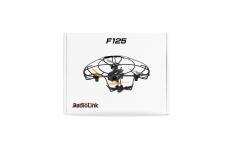
| F125 box | 1 | 1 | ||
| Carrying/Shoulder Bag | 1 | 1 | ||
| F125 | 1 | 1 | 1 | 1 |
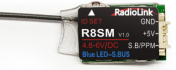
| R8SM Receiver | 1 | 1 | ||
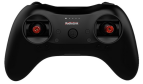
| T8S Transmitter | 1 | 1 | ||
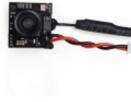
| FPV Camera | 1 | 1 | ||
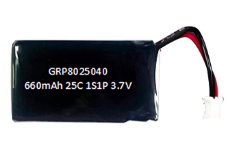
| 660mAh Li-Po Battery | 1 | 1 | 2 | 2 |
| GEMFAN Spare Propeller(4 for a set) | 2 | 2 | 2 | 2 |
| Propeller Guard | 4 | 4 | 4 | 4 |
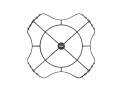
| Full Covered Propeller Guard | 1 | 1 | 1 | 1 |
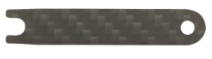
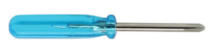
| Propeller Remove Tool | 1 | 1 | 1 | 1 |
| Hawkeye 4.3 FPV Monitor | 1 | |||
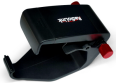
| TX and FPV Monitor Holder | 1 | |||
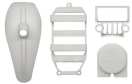
| Shell for DIY | 1 | 1 | ||
| Hook and Spring | 1 | 1 | ||
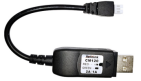
| Battery Charger | 1 | 1 | 1 | 1 |
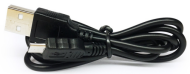
| USB Cable | 1 | 1 | ||
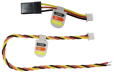
| RX and FC Connect Cable | 1 | 1 | ||
| Direction LED for night flight | 1 | |||
| Screwdriver | 1 | 1 | 1 | 1 |
| F125 User Manual | 1 | 1 | 1 | 1 |
| Hawkeye FPV Manual | 1 |









Chapter 1 Features of F125
As the mini racing drone that can fly at high speed at Altitude Hold Mode, F125 is very easy to master for drone freshman. The inertial navigation system technology blending Kalman filtering, gyro, accelerometer and barometer makes F125 possible to flight through narrow space with accuracy and hold altitude even it’s less than one-meter height to the surface or at high speed. With three flight modes Alt-Hold at low speed, Alt-Hold at high speed and Stabilize, beginners can flight stably at the first trial.
F125 is monitored by RadioLink mini racing drone flight controller F125, which is different from other flight controllers with PID needs to be set before use,will tune automatically. The software noise reduction technology not only enables a more pleasant flight but also makes the motors more responsive and more efficient than traditional 8520 coreless motors.It can be thrown and start to fly at any angle even under high-speed and remains stable even facing with sudden airflow fluctuations such as during takeoff, under braking, or after extended flying.
Chapter 2 Before Flight
2.1 Power Supply
Power for transmitter T8S: Make sure the transmitter is fully charged.
Power for F125: The voltage of 1S LiPo battery packed with F125 by default is not fully charged so the battery needs to be charged with the charger CM120 before flight.
The LiPo battery charger CM120, specially designed for 1S LiPo battery.
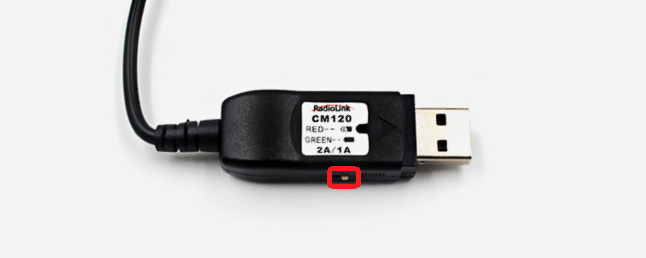
Charging current can be set as 1A or 2A by toggling the switch at the side of the charger.
The Red LED flashes slowly indicates the battery is under charging. The Green LED always on indicates the battery is fully charged. The Red and Green LED Flashing alternately indicates Fault prompt.
CM120 applies general USB connector, both computer and power bank for mobile phone can be used with CM120.
Note Voltage output of power supply should be NO higher than 5V.
2.2 Transmitter
The two joysticks of T8S correspond to the four basic channels respectively . The below example takes RadioLink radio T8S Mode 2 (Throttle on the left stick) .
Left joystick
Make the F125 rise or descend by toggling the left stick(THROTTLE) vertically upward or downward and turn clockwise or anticlockwise by toggling the left stick(YAW) to the left or right.
Right joystick
Make the F125 fly forward or backward by toggling the right stick(PITCH) vertically upward or downward and to left or right by toggling the right stick(ROLL) to the left or right.
Note If it’s the transmitter from other brands used with RadioLink F125, make sure that the receiver should be SBUS signal output supported. Once the receiver is installed on the mini drone, the phase of the throttle should be reversed while the other three channels normal and the CH5 should be set with a 3-way switch. Servo phases of transmitters from other brands should be set according to the actual situation.
2.3 F125
Assembled as building block makes the RC students exercise their DIY ability.Learning knowledge of science and technology when assembling, setting parameters and flight.
2.4 Joysticks & Flight Movements
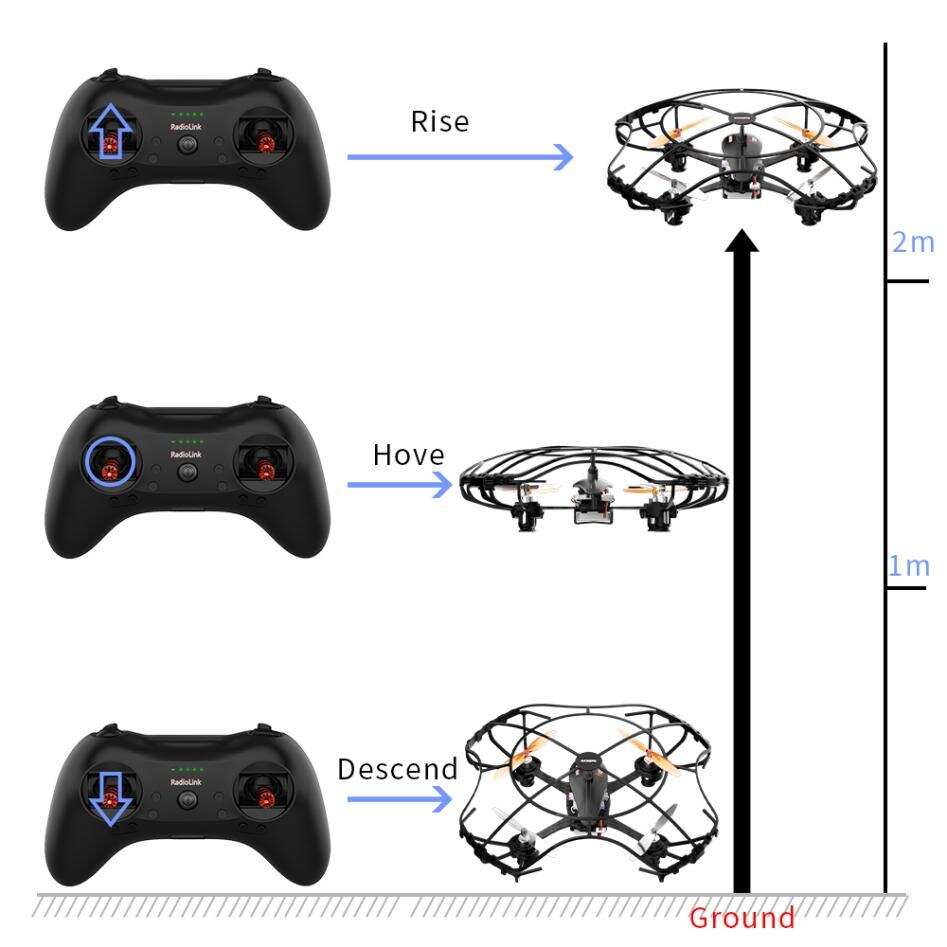
A. Throttle: Rise/ Descend/Hover
Toggle the throttle stick (on the left) vertically upward and F125 will rise and toggle the throttle vertically downward, then F125 descends.
If at Alt-Hold Mode, toggle the throttle stick vertically upward till the F125 rises to the preferred height, then toggle back to center position and release, the F125 will remain at this height.
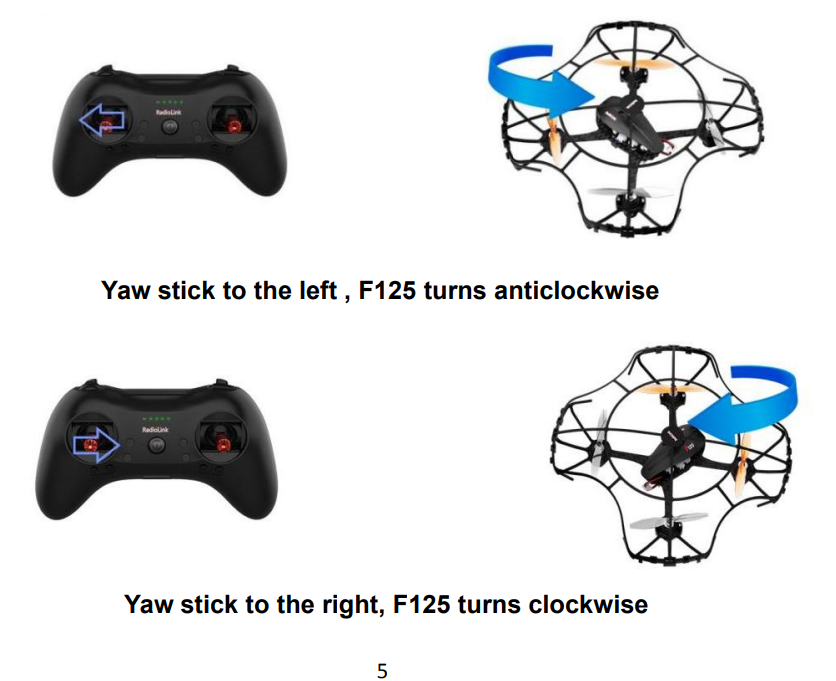
Yaw: Clockwise/Anticlockwise
Toggle the yaw stick (on the left) to the left and F125 will turn anticlockwise and toggle the yaw stick to the right, then F125 turns clockwise.
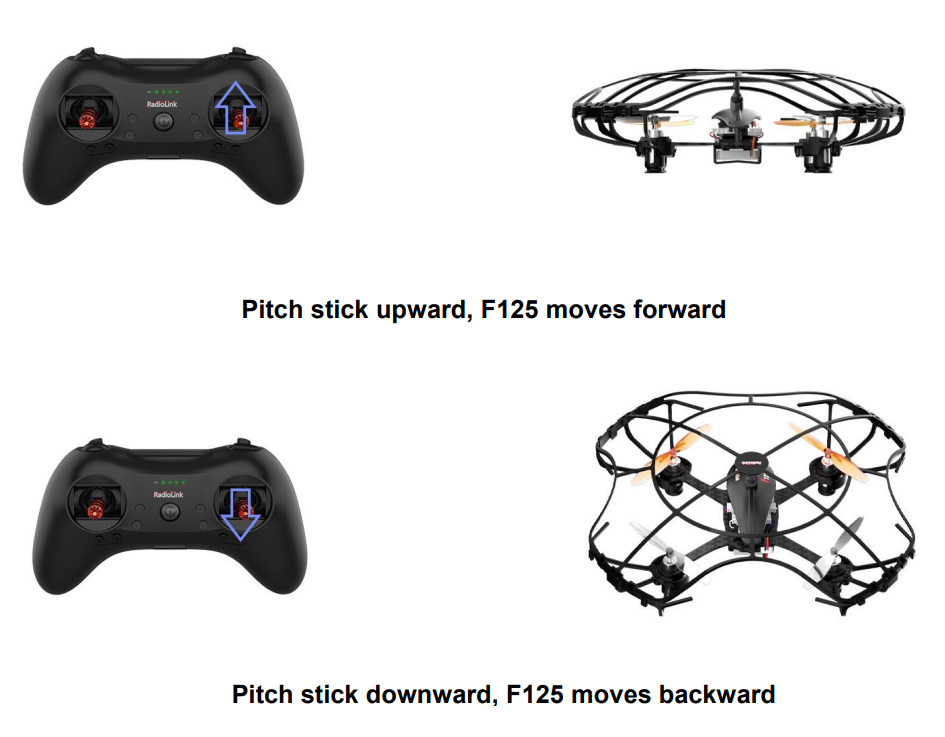
Pitch: Forward/Backward
Toggle the pitch stick (on the right) vertically upward and F125 will fly forward and toggle the pitch stick vertically downward, then F125 flies backwards.
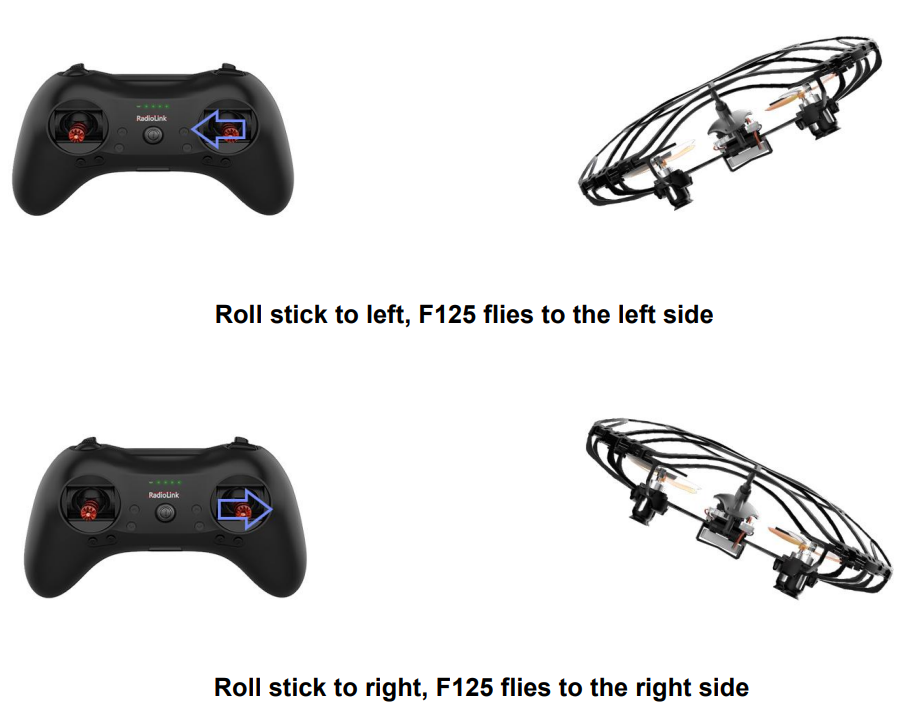
Roll: Right/Left
Toggle the roll stick (on the right) to the left and F125 will fly to the left side and toggle the roll stick to the right, then F125 will fly to the right side.
Chapter 3 Get Ready to Flight
Motor Installation
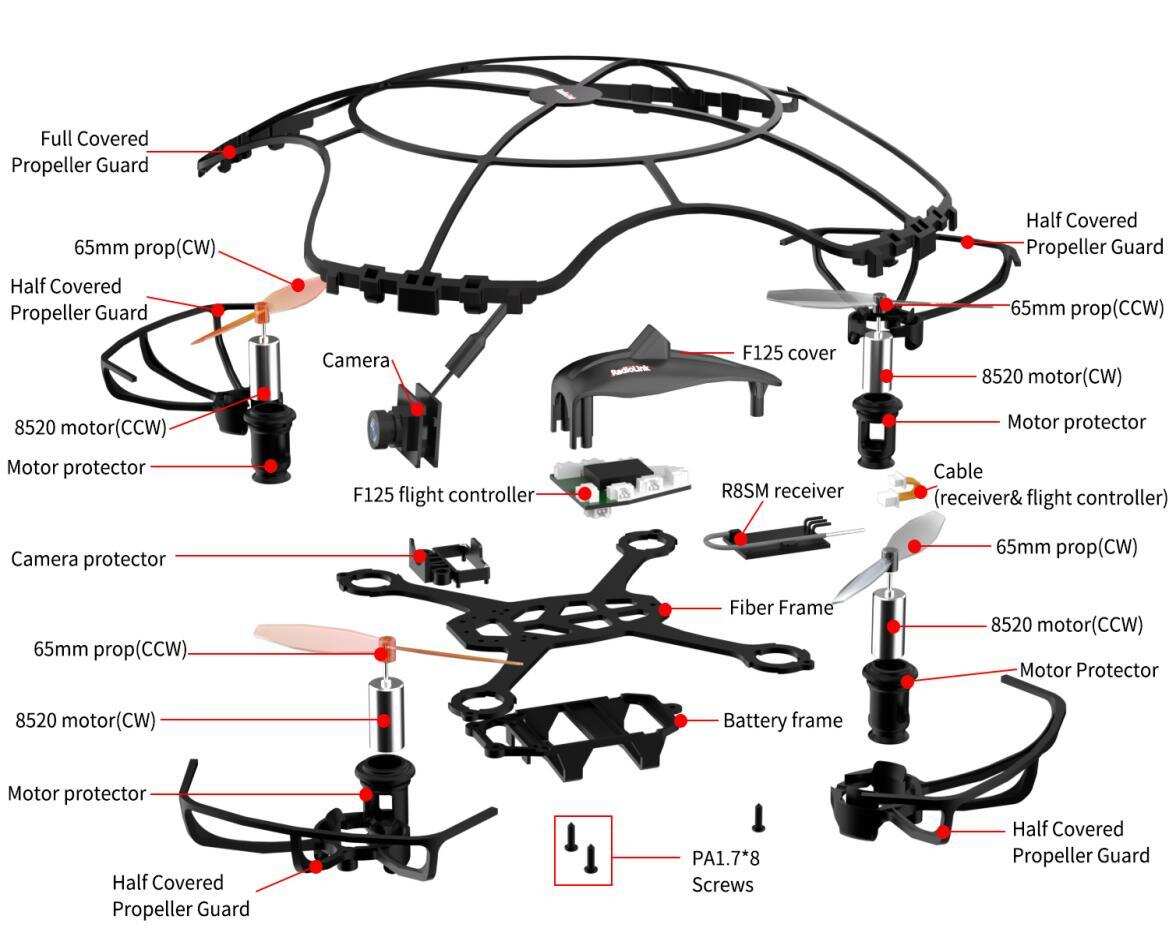
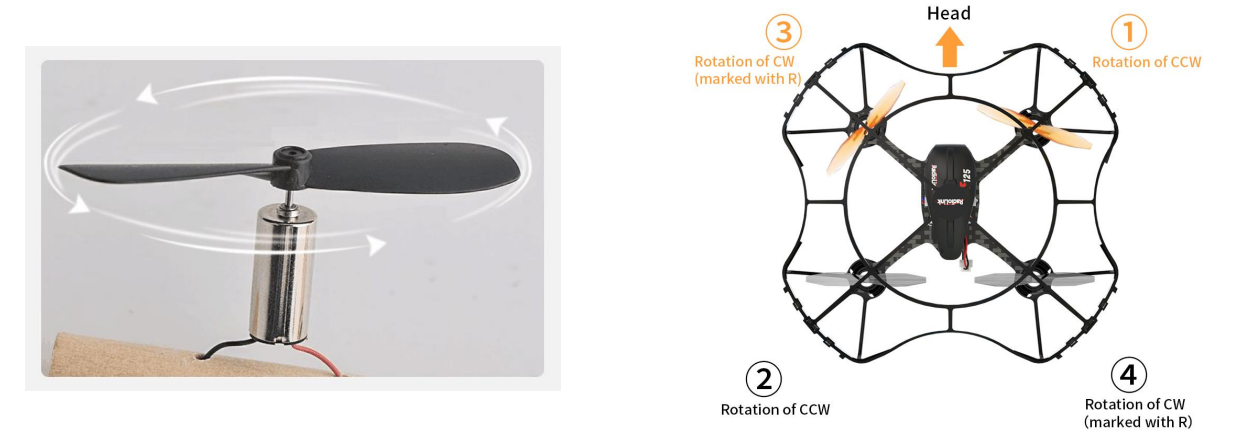
To make the aircraft fly, motors usually rotate clockwise(CW)/counterclockwise(CCW) with the propellers. The rotation direction of F125 motors can be identified by the cable colors. That is, red/blue means motor of clockwise(CW) while black/white means that of counterclockwise(CCW). It is very important to make sure about the rotation direction as below when installing motors. Otherwise, the drone would fail to take off.
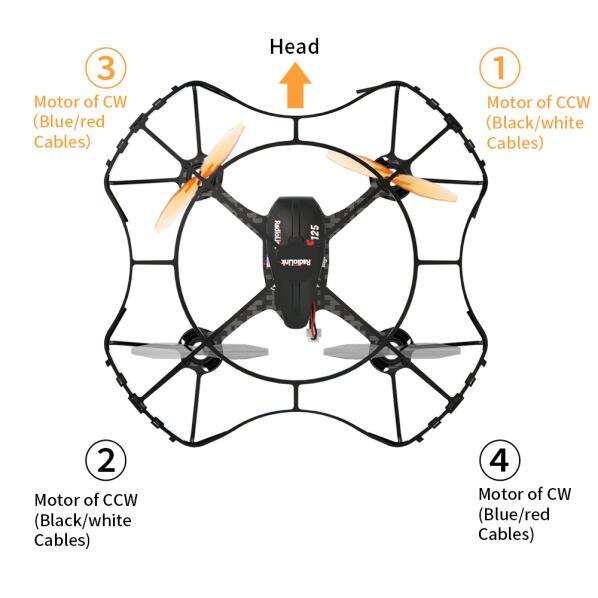
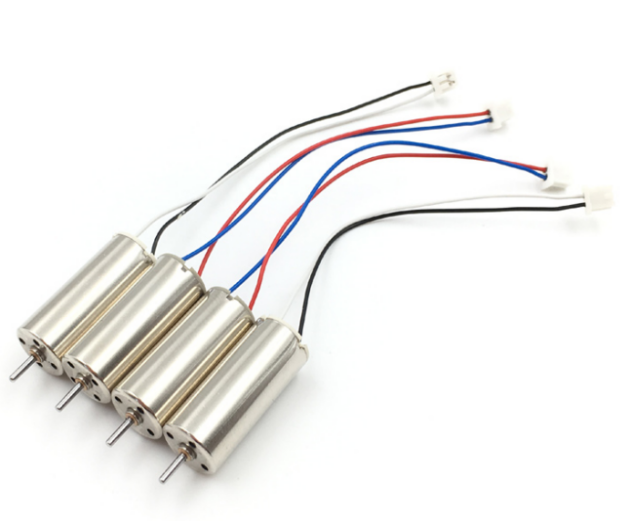
* Motors installation can be skipped as the whole F125 is already assembled by factory default. If any of the motors is worn out and needs to be replaced, it’s essential to identify the correct motor rotation.
3.2 Propellers Installation
F125 is installed WITHOUT propellers guard by factory default because of the package consideration. To ensure a safety flight, it’s strongly advised to check if the protectors are well installed .
① Find the two notches respectively on the motor protector and propeller guards.
② Put on the propeller guard from the bottom and adjust the position of the notches correspondingly.
③ Stabilize the frame with left hand and buckle the notch of one side with right hand. Then buckle the notch of the other side with left hand. A click sound will be heard if the installation is done with success.
④ Extra 4 screws are in the package. Please install them on the propeller guards.
⑤ After the installation of the half covered propeller guard, please install the full covered propeller guard. Align the full protective cover and half protective cover tabs. Match and press them from the left to the right until all tabs correspond to notches. Then follow this step for all the propeller guards.
Note After the installation of the four propellers guard, double confirm if they are leaning or slightly shake F125 to see if they drop. If they are crooked or drop, repeat the above steps to ensure the well installation.
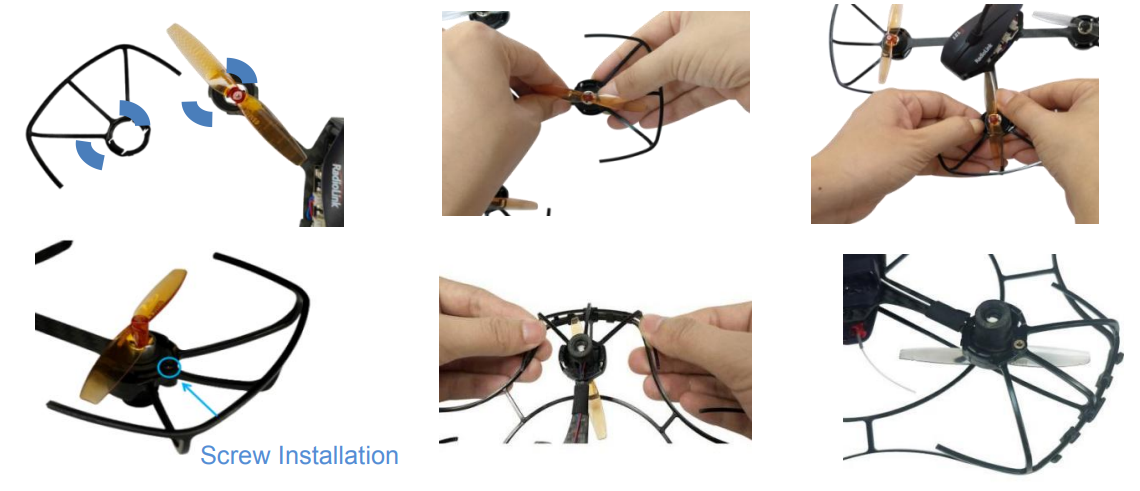
Propellers installation can be skipped as the whole F125 is already assembled by factory default. If the default propellers get worn and needs to be replaced after a period of flight, it is important to well identify the rotation direction of propellers. If installed incorrectly, F125 can’t take off even the throttle is pushed to max.
In order to identify the propellers rotation, take a propeller and observe there’s a radian at both sides of the small cylinder in the middle. The higher part (also called windward side) of the right propeller is at the front and the rotating motor will make propeller rotate counterclockwise(CCW). On the contrary, that is clockwise(CW) rotation. For the 65mm GEMFAN propellers used on F125, there are two marked with a letter R, meaning they should be installed on the motors of clockwise.
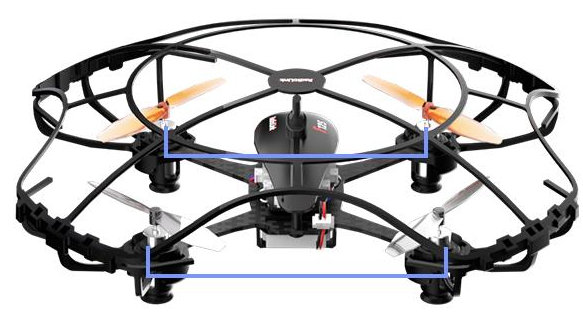
When the installation is done, make sure the four motors are vertical to the aircraft frame. Adjust them to vertical positions if necessary, otherwise F125 may not flight successfully.
3.3 Power On F125
Before powering on F125, fully charge the 1S LiPo battery first. Plug the PH2.0 end of the battery into the F125, then insert the battery into the battery frame under at the bottom of F125.
Orange propellers indicates the head of F125 by default. make sure they point to the same direction as the pilot when powering on and be ready to fly, to ensure safety.
The green LED of F125 will begin flashing when powered on. When it’s off, it means F125 finishes calibration.
Note Head direction is determinate. If F125 is calibrated with the direction different from the default, it will turn back to the default direction automatically when starts flying, That’s what we called Head Front Forward Point Without Compass. When the flight controller incorrectly recognizes the nose direction, you can re-power the aircraft, or make the flight controller re-identify the nose direction by re-calibrating the aircraft.
3.4 Flight Note
If it’s the first time of flying drone, flight mode of Altitude Mode-Low Speed is strongly advised to set. At the altitude mode, when toggle the throttle upward till the drone reaches a certain height and release, F125 will remain at this height. It’s simpler because pilots only need to toggle the other joystick to make the F125 move forward/backward or turn left/right. If it’s the Stabilize Mode chosen, try to toggle the joysticks slightly to correct the flight and avoid the drone having sudden moves.
If F125 drops by hitting something, toggle throttle stick to the bottom position immediately to stop motor rotation.
Make sure the signal output of receiver is SBUS to ensure normal operation of F125. For RadioLink receivers(R8SM/R6DSM) installed on F125, the led indicator is blue/purple when it’s SBUS working mode.
3.5 Setup Compatible Transmitters
By factory default, F125 standalone version doesn’t have receiver installed while RTF version is packed with the transmitter T8S and receiver R8SM combo. Receiver R8SM is also compatible with RadioLink T8FB. If it’s RadioLink transmitter AT10/AT10II/AT9/AT9S/AT9S Pro used with F125, compatible receiver should be R6DSM.
When using transmitters and receivers from other brands, please note:
1. Check the minimum working voltage of the receiver.
The minimum working voltage of many mini receivers on the market can only reach 3.7V, while aircrafts with coreless motors are usually powered by 1S 4.2V lithium batteries, and the voltage of the aircraft can easily drop below 3.7V during high-speed flight. Then the receiver will lose control due to insufficient power supply, and the aircraft will crash. So if you use transmitters and receivers from other brands, please pay attention to the minimum working voltage of the receiver. The minimum working voltage of RadioLink R8SM, R8FM, R6DSM mini receivers and F125 flight controllers can work well even when it reaches 2.3V.
Please make sure that the receiver you are using supports SBUS signal.
T8FB/T8S
RadioLink 8-channel transmitter are well set by factory default with the flight modes. To control F125, binding is the only thing needs to be done.
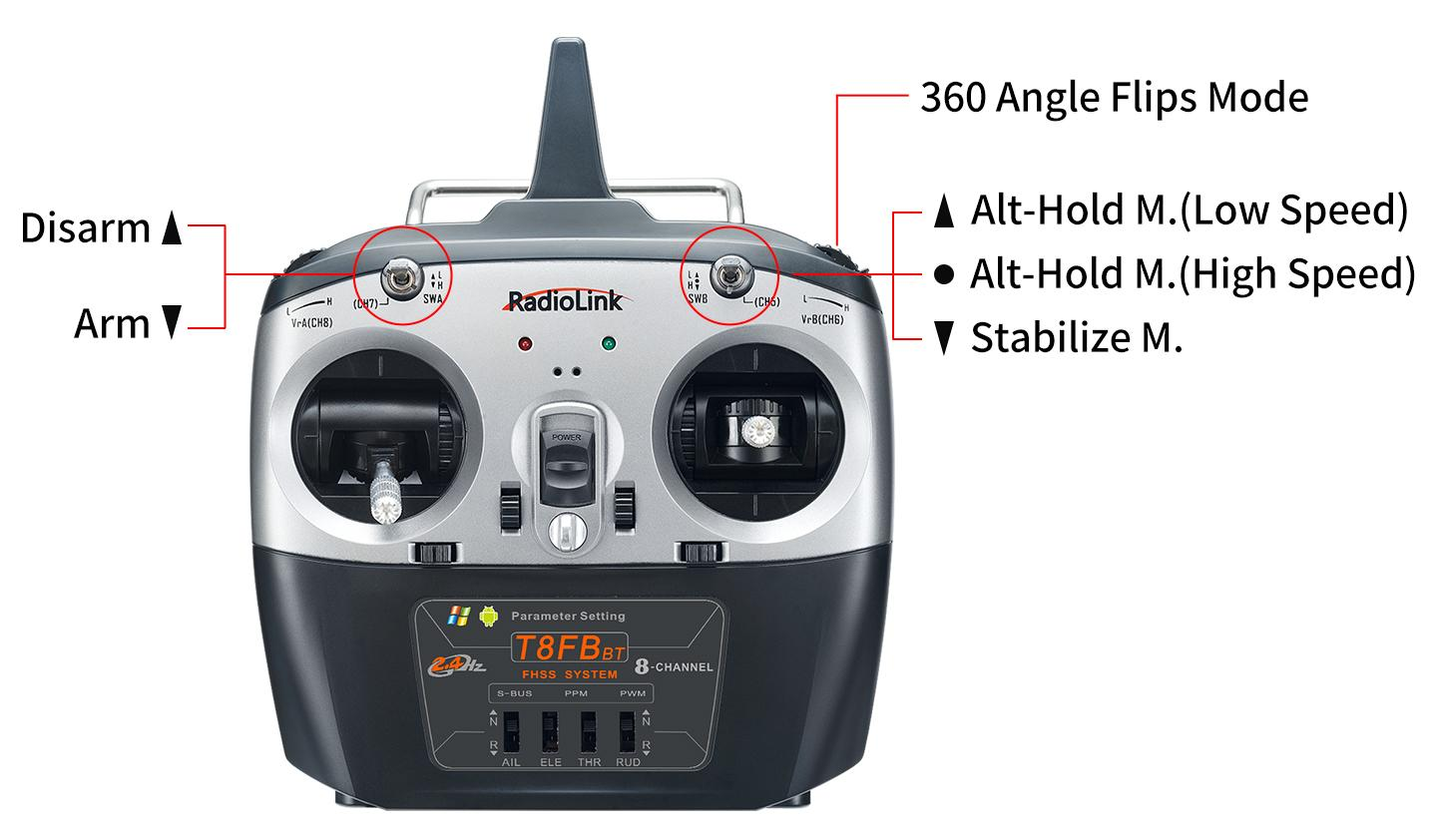
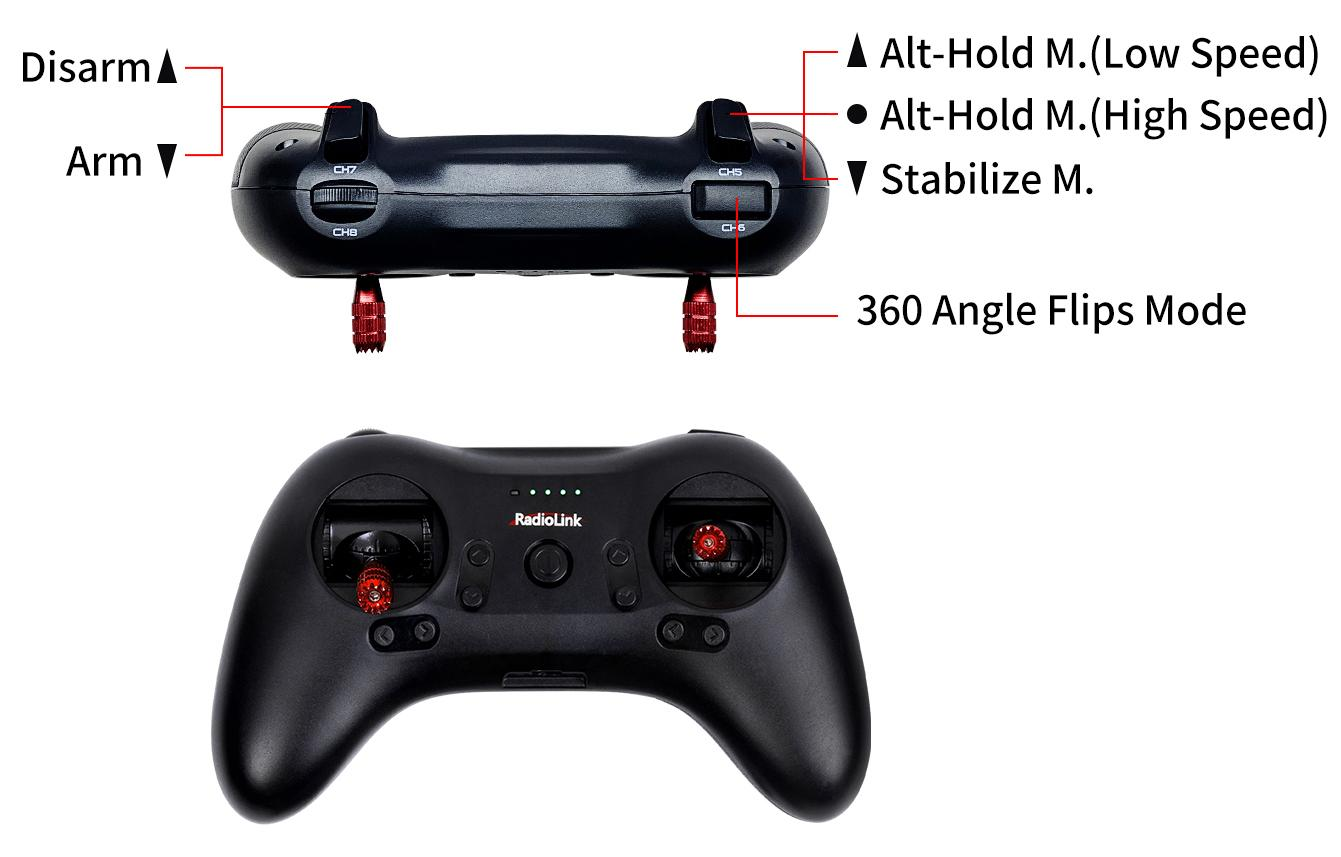
There are three flight modes for F125 including Altitude Mode- Low Speed, Altitude Mode- High Speed and Stabilize Mode. It can be changed by pressing the three-way switch on T8FB- SWB or T8S- CH5 as below
AT9S Pro/AT9S/AT9/AT10/AT10II
① Enter BASIC MENU, select MODEL TYPE and choose MULTIROTOR
② Return to BASIC MENU, select REVERSE and set CH3 Throttle as REV .
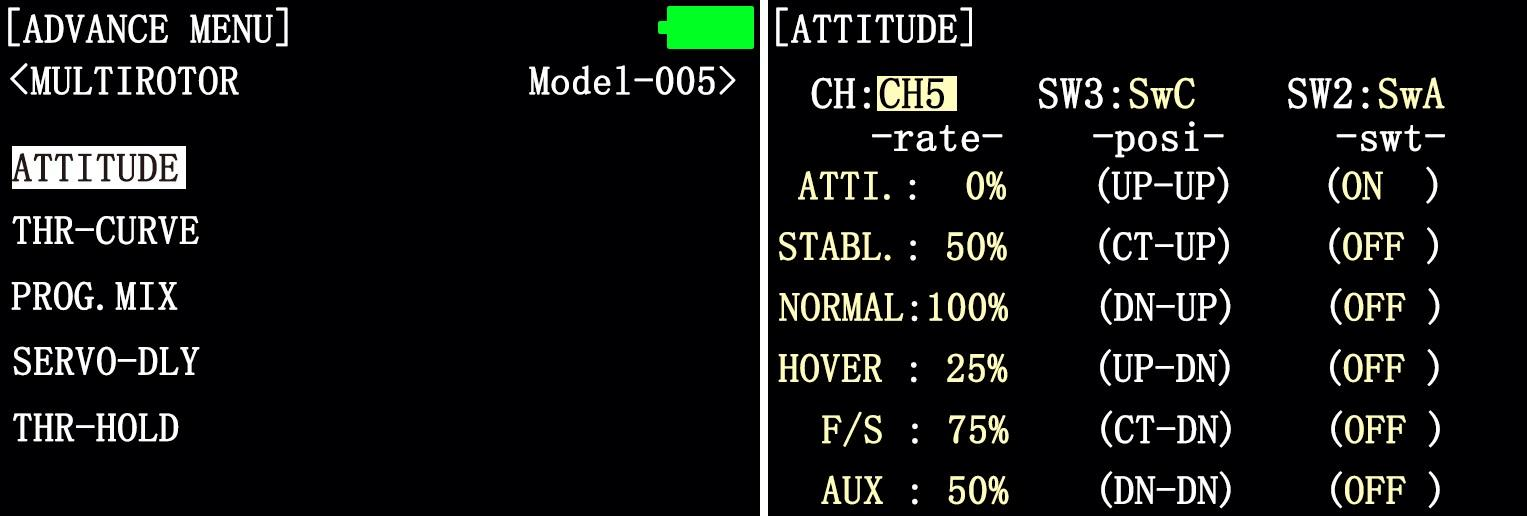
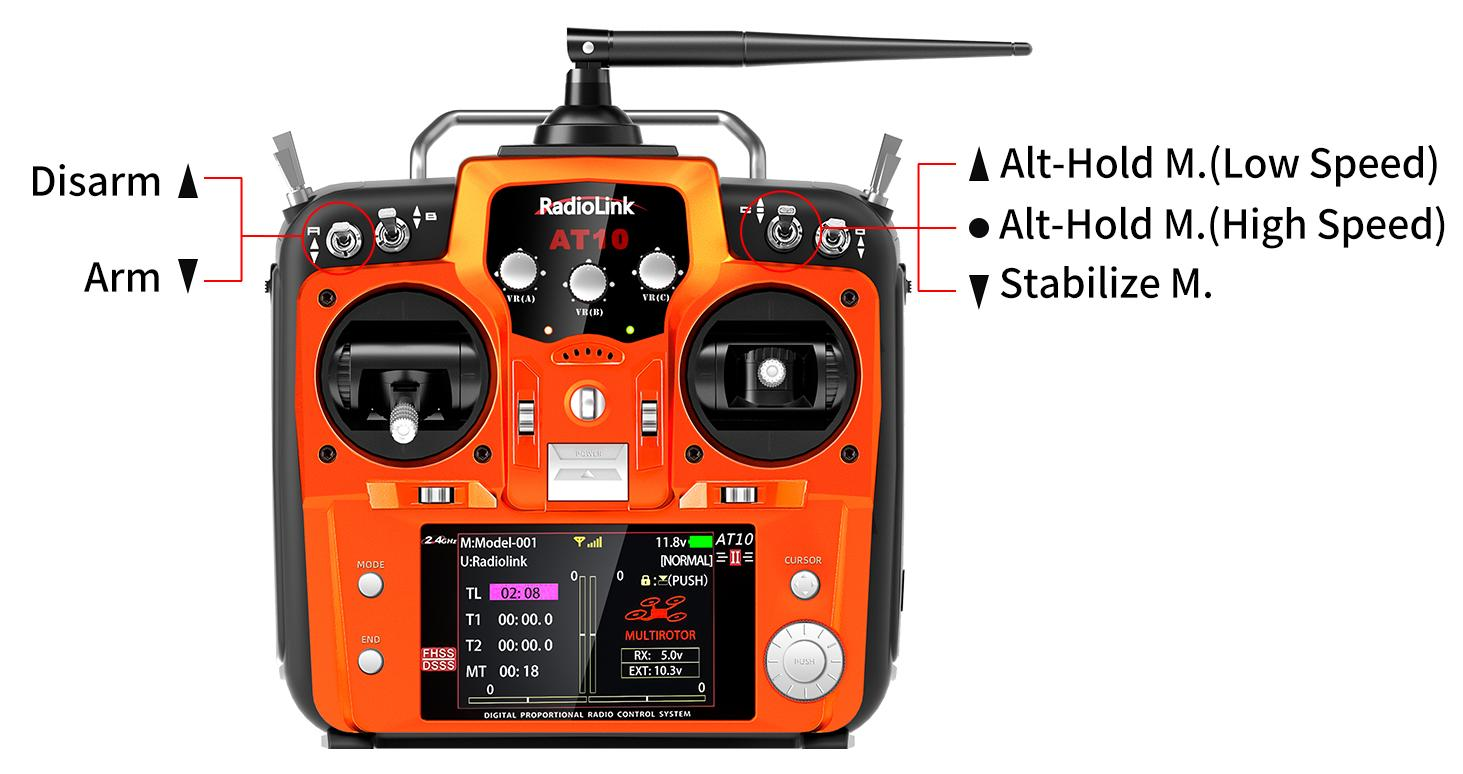
③ Enter ADVANCE MENU, select ATTITUDE and set the CHANNEL as CH5, SW3 as SWC with up position as Alt-Hold Mode(Low Speed), middle position as Alt-Hold Mode(HIgh Speed) and low position as Stabilize Mode.
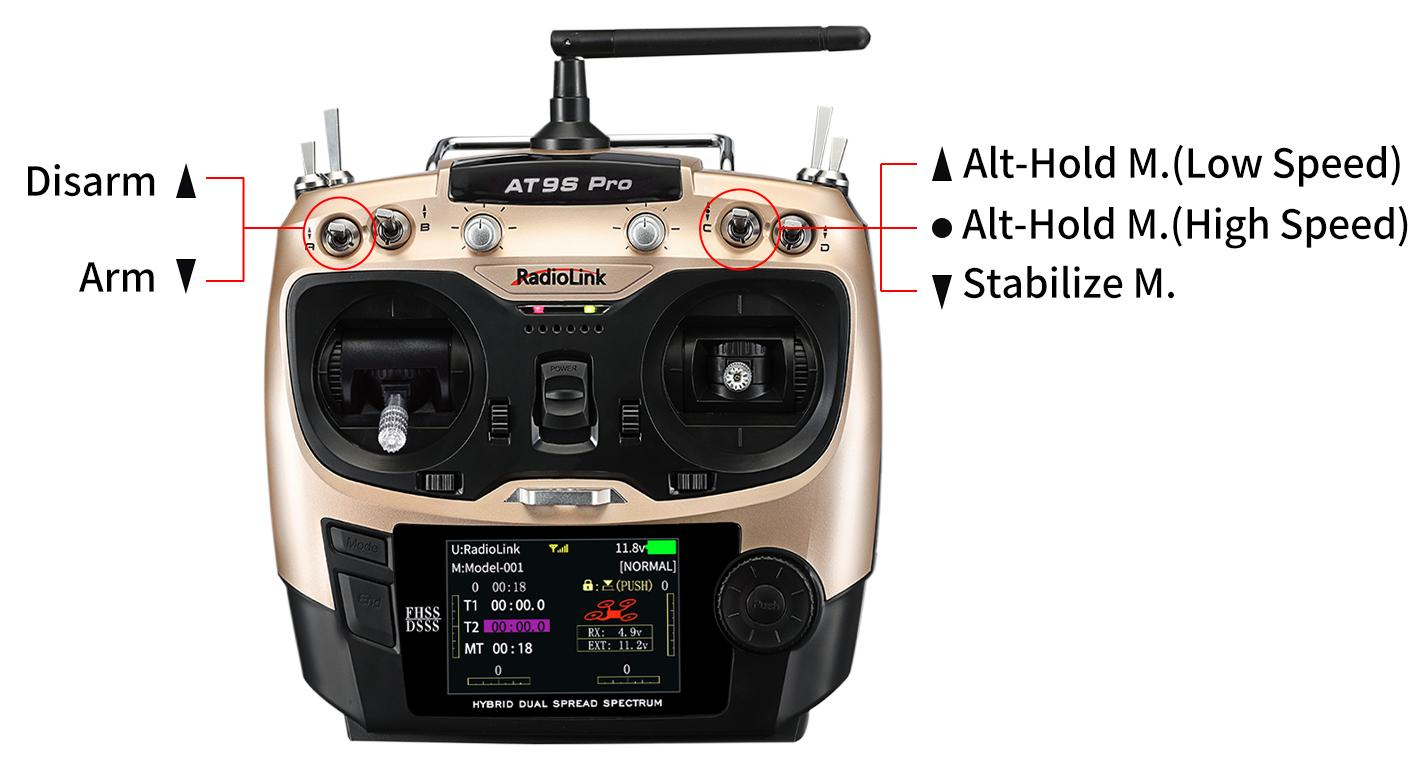
* For more setting instructions of different RadioLink transmitters, please visit www.radiolink.com to download the corresponding detailed e-manual.
3.6 Binding
If it’s the RTF version( whole pack including T8S+F125+bag) purchased, there’s no need to bind because the binding is complete with receiver R8SM installed by factory default. However, if it’s only the aircraft F125 is purchased, binding between the transmitter and F125 with receiver installed needs to done first.
If fly F125 with RadioLink transmitter and receiver, binding steps are same as following.
Place the transmitter and receiver(installed on F125) close to each other within 50 centimeters.
Power on the transmitter and F125.
There is a black binding button(ID SET) on the side of the receiver, press it for more than 1 second. When the LED starts flashing, meaning binding process has started.
The binding is complete when the LED is always on.
Make sure F125 is armed (Details in next section). Gently push the throttle of transmitter to see if motors move. If doesn’t, retry binding again.
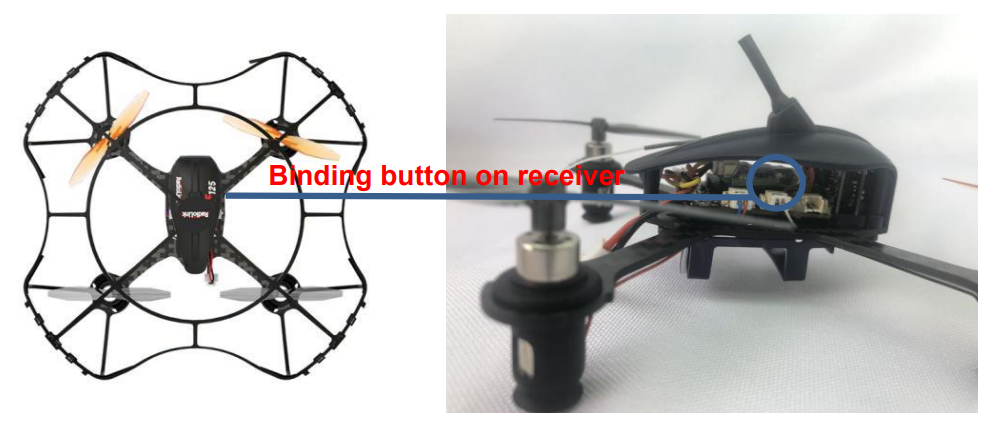
Note
F125 currently supports SBUS signal output only, always make sure the LED of R8SM/R6DSM is blue/purple, meaning SBUS signals output. If the LED is red, press the binding button twice in 1 second and release to change it to purple/blue.
If it’s the transmitter of AT9S Pro/AT9S/AT10/AT10II used, channel quantity needs to be set first in order to be compatible with receiver R6DSM. Long press MODE to enter BASICE MENU, select SYSTEM and modify CH-SELECT as 10CH. Otherwise, F125 won’t be able to be armed.
3.7 Arm and Disarm F125
A. How to arm
Throttle on left(Mode 2): Toggle the left joystick to the lower right corner and hold this position for 3 seconds till the green LED of F125 is on.
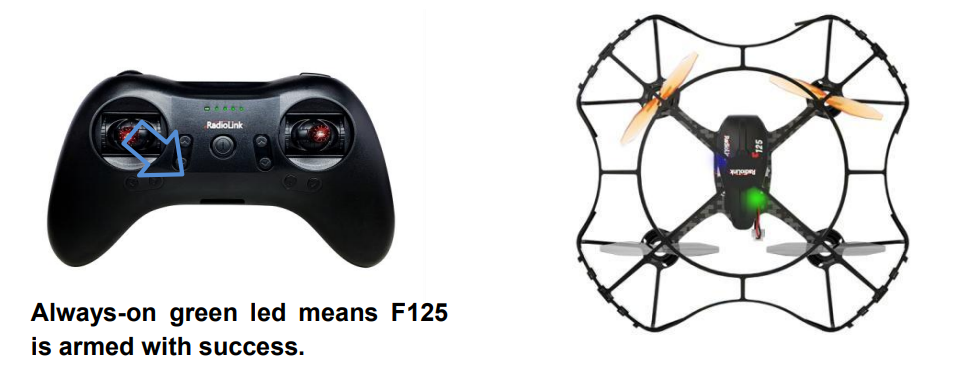
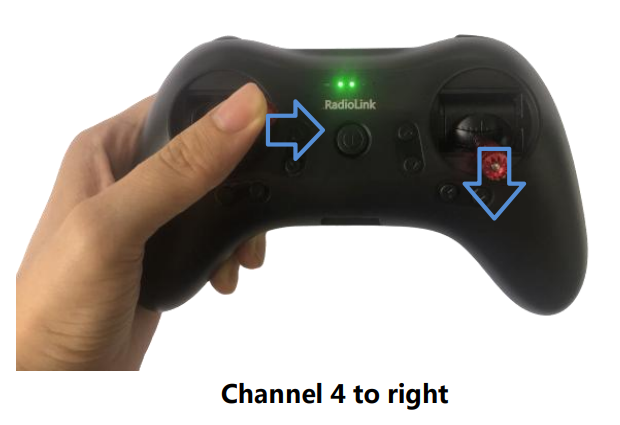
Throttle on right(Mode 1): With right joystick at bottom, toggle the left stick to the right and hold this position for 3 seconds till the green LED of F125 is on.
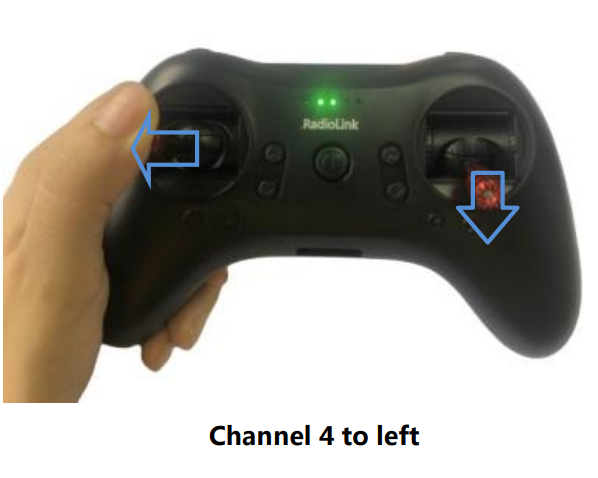
B. How to disarm
When the flight is finished, always make sure F125 is disarmed when get close and try touching it to avoid unexpected harm.
Throttle on left(Mode 2): Toggle the left joystick to the lower left corner and hold this position for 3 seconds till the green LED of F125 is off.
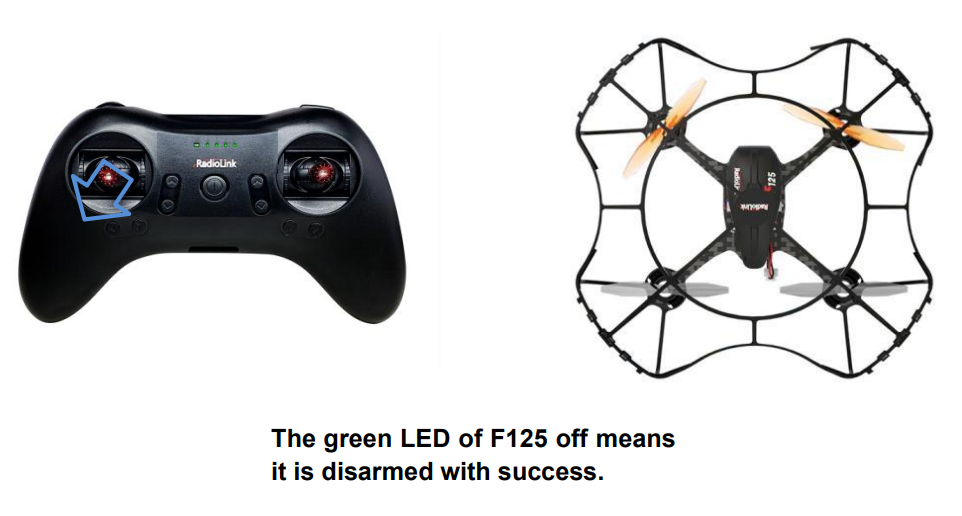
Throttle on right(Mode 1): With right joystick at bottom, toggle the left stick to the left and hold this position for 3 seconds till the green LED of F125 is off.
Chapter 4 Flight at Different Flight Modes
It’s strongly advised for beginners to start from Altitude Hold Mode (Low-speed) to Altitude Hold Mode (High-speed) then to Stabilize Mode.
It’s better to keep the direction of F125 head same as pilot in order to easily judge the flight direction. Otherwise, F125 may flight towards pilot and get him/her hurt. If the aircraft head is changed unexpectedly and different from pilot’s direction, pull the throttle stick to the lowest position to land F125.
4.1 Altitude Hold Mode (Low-speed) and Altitude Hold Mode (High-speed)
4.1.1 Rise/Descend
Press the CH5 switch of T8S backward, which makes F125 fly at Altitude Hold Mode (Low-speed). Make sure the orange propellers at front when powering F125 on. Then arm F125 and push the throttle joystick vertically upward higher than center position, then the F125 will rise while if push it vertically downward, then the F125 will descend.
4.1.2 Hover
Push the throttle joystick vertically upward till the F125 rises to a height as wish, then toggle it back to center position and release , the F125 will hover at this height.
4.1.3 Forward/Backward/Right/Left
At Altitude Mode, F125 is able to fly forward/backwards or towards to right/left by toggling the right stick at the certain height .
For beginners, make sure to push the stick gently because being a racing drone, F125 is very responsive. It’s advised to release the stick as soon as toggle to one direction so that F125 will back to level automatically. Otherwise, F125 will keep flying to the toggled direction with accelerated speed.
4.1.4 Clockwise/Anticlockwise Rotation
When get familiar with the above flights, try flight clockwise/anticlockwise because the yaw practice is more difficult to judge the flight direction. Clearly knowing the direction will quickly help master drone flight. Try imagine sitting on the drone could be a better way to practice.
Toggle the rudder joystick to the left and F125 will flight anticlockwise while if to the right, then the F125 will flight clockwise.
4.2 Stabilize Mode
Press the CH5 switch of T8S backward and it keeps F125 work in Stabilize Mode.
When at Stabilize Mode, F125 will flight faster than when at Altitude Mode. Toggle joysticks as gentle as possible to avoid drastic movements, which may possibly hurt the pilot. Make sure that the battery is fully charged before enjoying the flight.
Once get familiar with the low speed and high speed at the Altitude Mode, beginners can practice how to rise/descend,hover, pitch forward/backward, move to left/right and rotate to clockwise/anticlockwise at the Stabilize Mode, which is more challenging.
4.3 Switch for 360 Angle Flips Mode
F125 add a mode named Switch for 360 Angle Flips Mode except Altitude Hold Mode, and Stabilize Mode. The setting steps as below:
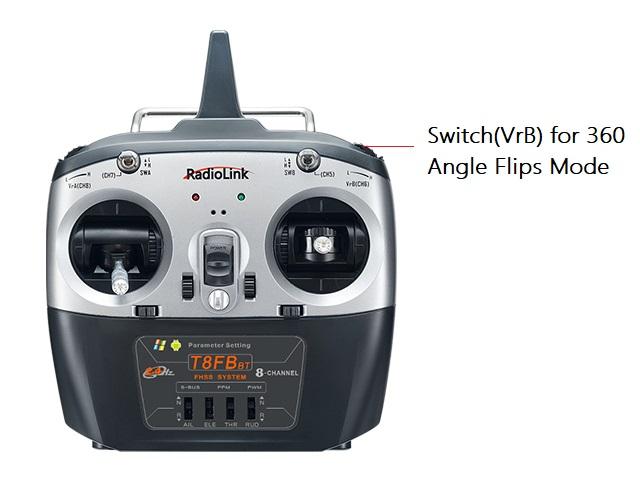
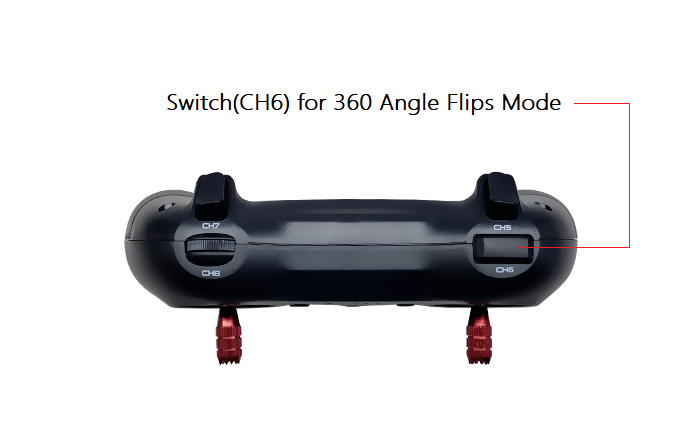
When the transmitter is T8S, press the CH6 switch twice continuous and then push the aileron or elevator stick. If push the aileron stick to the left, the F125 will roll 360 degrees to left. If push the aileron stick to the right, the F125 will roll 360 degrees to right. If push the elevator stick upward, the F125 will roll 360 degrees forward. If push the elevator stick downward, the F125 will roll 360 degrees backward.
When you ready to controlling your F125 roll 360 degrees backward, you must fly your F125 far away from yourself first to ensure safety.
When the transmitter is T8FB, the 360 Angle Flips Mode switch is VrB, the operating steps are same as T8S.
Attention: The interval time for push the aileron or elevator stick do not more than 5 second when you press the 360 Angle Flips Mode Switch. You have pressed the switch again if the time is more than 5 second.
Note When the green LED on F125 starts flashing during flight, it means the voltage of F125 is lower than 3.8V as this value is default for 1S battery. It’s advised to stop flying to avoid battery over discharging.
* If the F125 purchased is with camera integrated, it’s capable of OSD function and pilot can check the current voltage of the battery by goggle or FPV screen in real time.
Chapter 5 Image Transmission of F125
The image transmission device of F125is 5.8G 25mW all-channel camera integrated image transmission. If it’s the image transmission version purchased, the binding between F125 and the FPV screen has been done by factory default. Pilots only need to power both on before flight. If it’s the standalone version of F125, an FPV screen or a goggle with integrated 5.8G image transmission receiver is needed and setup by following its instructions.
The default transmission power is 25MW. Available power among 25MW,100MW and 200MW can be changed by pressing the button on the camera. More instructions about setting the power, please visit www.radiolink.com for detailed manual.
Note As device of image transmission includes transmit and receive, the distance could be influenced by the gain of transmit and receive.
5.1 Little Pilot (SCHOOL) All-in-one 4.3 inch FPV Monitor
5.1.1 Buttons and Functions
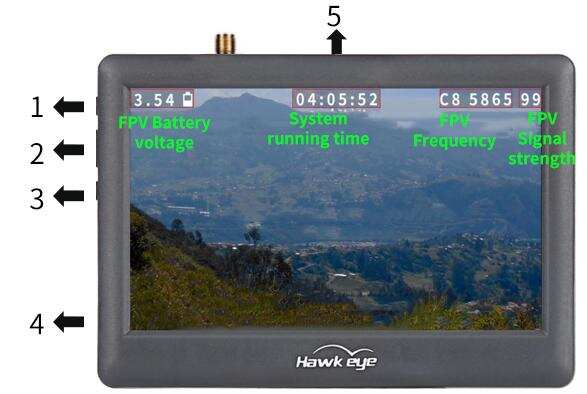
Button Name | Function |
1. Adjustment button(+) | Short press to select desired frequency from 6 groups A-B-C-D-R-F |
2. Power/Menu button | Long press to turn-on/off |
3. Adjustment button(-) | Short press to select desired frequency from groups 1 - 2 - 3 - 4 - 5 - 6 - 7 - 8 |
4. Micro USB Charge port | Charging |
5. Reset | Reset |
5.1.2 Little Pilot Monitor Frequency Group Selection
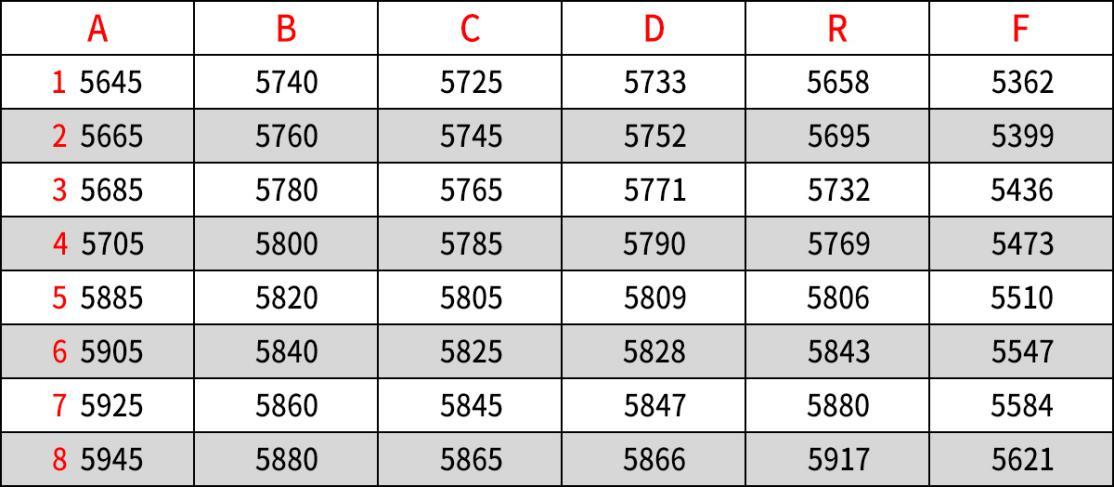
5.1.3 Bind Little Pilot Monitor to F125
1. Automatic binding (Recommended):
Power on F125, and then long press button(+) in Little Pilot FPV to start auto search. After searching, the FPV screen with the strongest signal will be automatically displayed.
2. Manual binding:
① Check the frequency of F125 according to the method in Chapter Chapter 5.3.2 Customize the power/Band/frequency
② Match frequency of F125 to the frequency table of Little Pilot FPV. Short press button(+) to adjust to the corresponding frequency band, and short press button(-)to adjust to the corresponding frequency point
For example, the frequency of F125 is B5, 5809, according to the method in Chapter 5.3.2 Customize the power/Band/frequency. 5809 corresponds to D5 in frequency table of Little Pilot FPV Monitor. After the FPV monitor is turned on, adjust the band/frequency at the top of the screen to D5 by short pressing the button(+) and button(-) to complete the binding.
5.2 LONGSITE 3-inch FPV Goggle
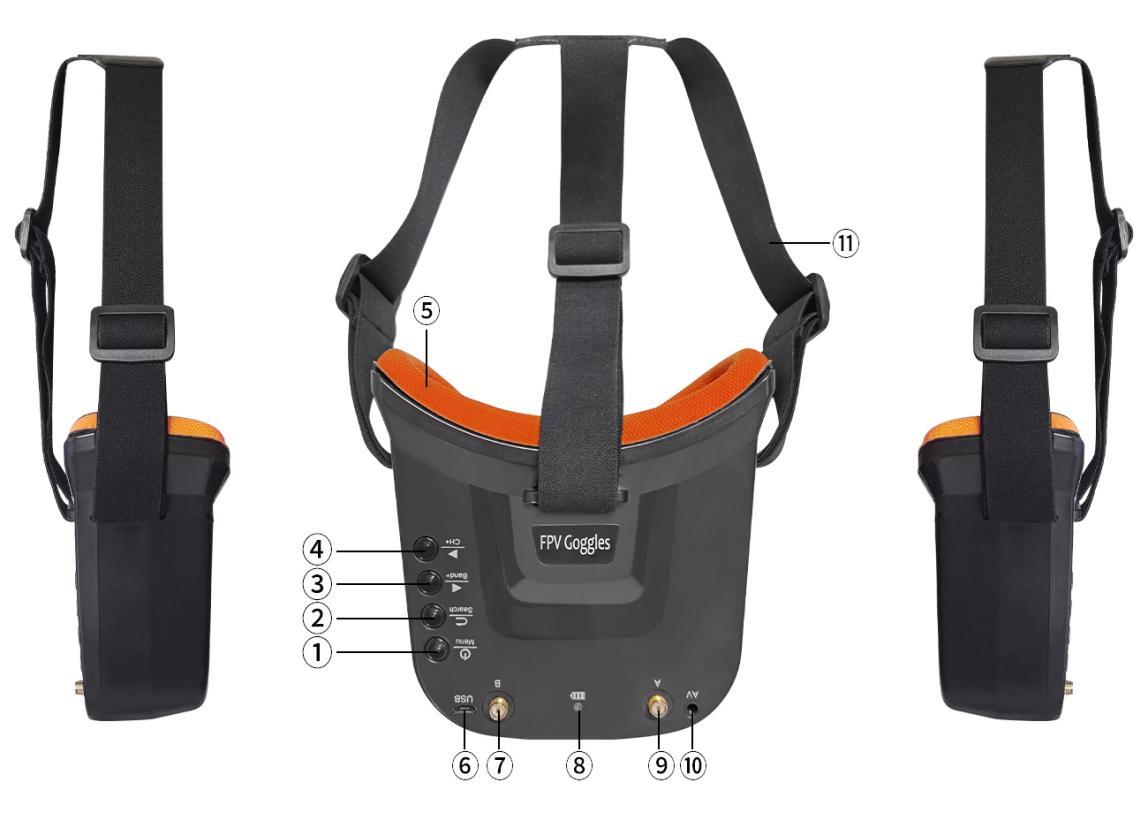
5.2.1 Description
① Key 1: Short press for MENU mode; Long press (More than 3 sec) for Power ON/OFF.
② Key 2: Short press for Auto-Searching (Automatic selection of the strongest channel).
③ Key 3: Short press for Band+ (Change bands A-B-E-F-R circularly).
④ Key 4: Short press for Channel+ (Change channels 1-2-3-4-5-6-7-8 circularly).
⑤ Eye ring: protect the surrounding parts of the eyes, so that the wear more comfortable.
⑥ Micro-USB Charging port: Supports DC5V only.
⑦ Antenna port A: RP-SMA male.
⑧ Charging indicator: Red light when charging light; full power, the indicator goes off.
⑨ Antenna port B: RP-SMA male.
⑩ AV Jack: In RF receiving mode can output AV signal; In AV mode can enter the video signal.
⑪ Head band: Adjustable headband.
5.2.2 Menu Operation Instructions
In normal mode, press Key 1 to enter the MENU mode.
In MENU mode:
① Key 1: Select the option bar.
② Key 2: Return to normal mode.
③ Key 3: Value -.
④ Key 4: Value +.
5.2.3 LONGSITE FPV Goggle Frequency Table
Frequency Table(MHz) | ||||||||
CH1 | CH2 | CH3 | CH4 | CH5 | CH6 | CH7 | CH8 | |
Band A | 5865 | 5845 | 5825 | 5805 | 5785 | 5765 | 5745 | 5725 |
Band B | 5733 | 5752 | 5771 | 5790 | 5809 | 5828 | 5847 | 5866 |
Band E | 5705 | 5685 | 5665 | 5645 | 5885 | 5905 | 5925 | 5945 |
Band F | 5740 | 5760 | 5780 | 5800 | 5820 | 5840 | 5860 | 5880 |
Band R | 5658 | 5695 | 5732 | 5769 | 5806 | 5843 | 5880 | 5917 |
5.2.4 Bind LONGSITE FPV Goggle to F125
1. Automatic binding (Recommended):
Power on F125, and then long press Search button in LONGSITE 3-inch FPV Goggle to start auto search. The successful display of the image transmission means that the binding is successful.
2. Manual binding:
① Check the frequency of F125 according to the method in Chapter 5.3.2 Customize the power/Band/frequency
② Match frequency of F125 to the frequency table of LONGSITE FPV Goggle. Short press Band+ button to adjust to the corresponding frequency band, and short press CH+ button to adjust to the corresponding frequency channel.
For example, the frequency of F125 is D5, 5820, according to the method in Chapter 5.3.2 Customize the power/Band/frequency. 5809 corresponds to F5 in frequency table of LONGSITE FPV Goggle. After the FPV goggle is turned on, adjust the frequency at the top of the screen to F5 by short pressing the Band+ and CH+ button to complete the binding.
5.3 Image Transmission of F125
5.3.1 LED Indicator of the image transmission
① RED and BLUE always on means normal working status. YELLOW is used to indicate that the module is overheated, and the image transmission enters the protection mode.
② If RED is always on while BLUE is off, meaning it’s at PitMode. That is, transmission off. The transmission distance is 1-2m. It’s advised to choose this mode if there are many people switching channels simultaneously at the same space so that channels won’t get mixed.
③ The transmission power is 200MW by default. If you need to change the transmission power, press Channels/Power Switching Button on the camera to set it. The transmission power can be set to 25MW, 100MW and 200MW. For details, see Chapter 8.3.2 below.
④ Since the image transmission system consists of the transmit and the receive, the receiving distance of the image transmission is related to the gain of both the transmitter and the receiver of the image transmission.
5.3.2 Customize the power/Band/frequency
After powering on, wait for 10 seconds to initialize, red and blue(and yellow) always on means normal working status. Long press the channels/power switching button, the channel frequency, the channel team and the transmit power will recycle.
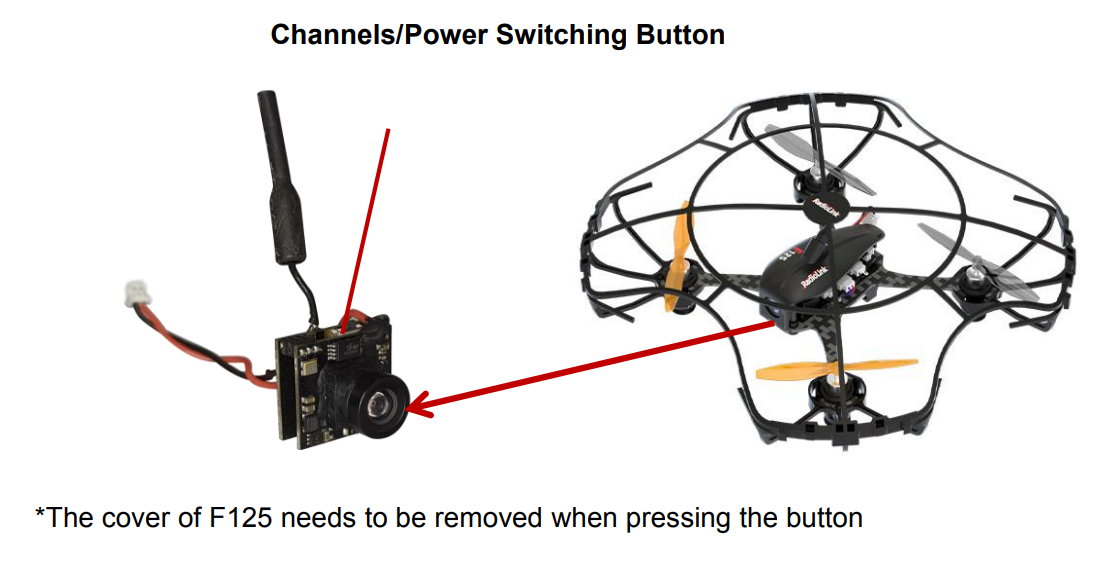
Table of Band/Frequency
Band/Freq | 1 | 2 | 3 | 4 | 5 | 6 | 7 | 8 |
A | 5865M | 5845M | 5825M | 5805M | 5785M | 5765M | 5745M | 5725M |
B | 5733M | 5752M | 5771M | 5790M | 5809M | 5828M | 5847M | 5866M |
C | 5705M | 5685M | 5665M | 5645M | 5885M | 5905M | 5925M | 5945M |
D | 5740M | 5760M | 5780M | 5800M | 5820M | 5840M | 5860M | 5880M |
E | 5658M | 5695M | 5732M | 5769M | 5806M | 5843M | 5880M | 5917M |
F | 5362M | 5399M | 5436M | 5473M | 5510M | 5547M | 5584M | 5621M |
Frequency Selection: When the image transmission is in normal working state (that is, when the RED and BLUE indicator lights are always on), long press the channels/power switching button for 5 seconds, the RED led flashes once means entering the frequency selection mode. Then short press the button again, the frequency changes each time the button is pressed once. The blue led flashes 1 time means Frequency 1,2 times means Frequency 2,3/4/5/6/7/8 etc.
Take F125 and Little Pilot FPV Monitor as an example:
For frequency selection, long press channel/power switch button on F125 for 5 seconds to enter the frequency selection mode, and then short press the button to switch to the desired frequency point. For example, the frequency point was originally A1 5865. Short press the channel/power switch button 3 times to switch the frequency point from A1 5865 to A4 5805. After switching the frequency point of F125, the Little Pilot FPV Monitor screen will be disconnected due to different frequency points. At this time, long press button(+) on Little Pilot FPV Monitor to start auto search (for the method of manual binding, please refer to the chapter: 5.1.3 Bind Little Pilot (SCHOOL) FPV Monitor to F125), After searching, the FPV screen with the strongest signal will be automatically displayed. and the frequency on the screen will be changed to A4 5805 synchronously. After the frequency point is changed, you need to save the settings. Press and hold the channel/power switch button for 3 seconds. The RED and BLUE lights always on indicates that the modified parameters are saved successfully. Otherwise, original frequency point will be remained after F125 is powered on again.
Note: Sometimes the frequency point on the lower left of the FPV screen of the Little Pilot FPV Monitor is different from the frequency point on the upper right, but the image can also be displayed. That is because the image can be seen in the similar frequency band, but once the distance between the aircraft and the FPV display screen is far away, The sensitivity will be reduced, and image will be unclear, so it is best to keep the same frequency.
Band Selection: In frequency selection mode, long press the channels/power switching button for 5 seconds, the RED led flashes twice means entering the band selection mode. Then short press the button again, the band changes each time the button is pressed once. The blue led flashes 1 time means Band A, 2 times means Band B, C/D/E/F etc.
After F125 and Little Pilot FPV Monitor are successfully bound, if you still need to switch the band, please press the channel/power switch button in the band selection mode to switch to the desired band. After switching, you need to long press button(+) on Little Pilot FPV Monitor to automatically search for channels. After the band is changed, you need to save the settings. Otherwise, original band will be remained after F125 is powered on again. Press and hold the channel/power switch button for 3 seconds. The RED and BLUE lights always on indicates that the modified parameters are saved successfully.
Power Selection: In Band selection mode, long press the channels/power switching button for 5 seconds, the RED led flashes three time means entering the power selection mode. Then short press the button again, the power changes each time the button is pressed once. The blue led flashes 1 time means 25mA, 2 times means 100mW and 3 times means 200mW.
After F125 and Little Pilot FPV Monitor are successfully bound, if you still need to switch the power, short press the channel/power switch button in the power selection mode to switch to the desired power. At the same time, the screen of the Little Pilot FPV Monitor will update the power in real time. After the power is switched, it will be automatically saved, you don’t need to save the parameters again.
Turn on/off the transmission: When at the normal working status(with RED and BLUE lights on), quickly press the button twice and the working mode will change. When the RED light is on and BLUE light is off, it means it’s at Pitmode(Low power mode). When RED and BLUE lights are on, it means the normal transmission mode.
Parameter saving: When all parameters set, press and hold the channel/power switch button for about 3 seconds, the RED and BLUE always on means setting saved successfully; the RED and BLUE lights alternately flash means the frequency/band/power selection mode, and the parameters are not saved successfully. You need to press and hold the channel/power switch button again until the red and blue lights are always on.
Note
① When installing the image transmission camera, make sure the heat radiation is considered. Otherwise, the transmission power will decrease even turn off as the protection of over heating is activated.
② It’s normal that the camera will get heated during usage. DO NOT touch it directly with hands in case of getting burnt.
③ If the transmission antenna is broken or not well welded, the transmission distance will be impacted. Replace the antenna as soon as possible.
④ The detailed instructions of setting FPV screen and goggle, please refer to its corresponding manual.
⑤ If there’s interference during the usage, try switching the camera channel first, then search for a new channel on FPV screen or goggle.
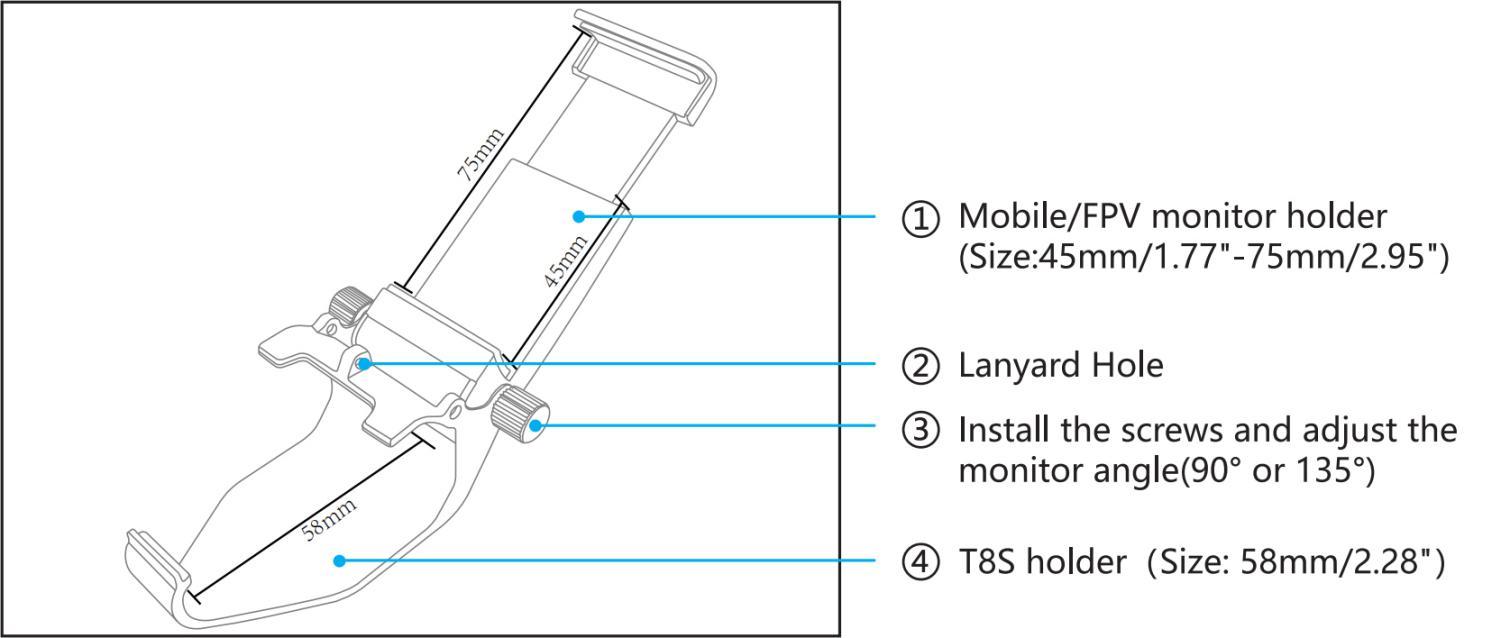
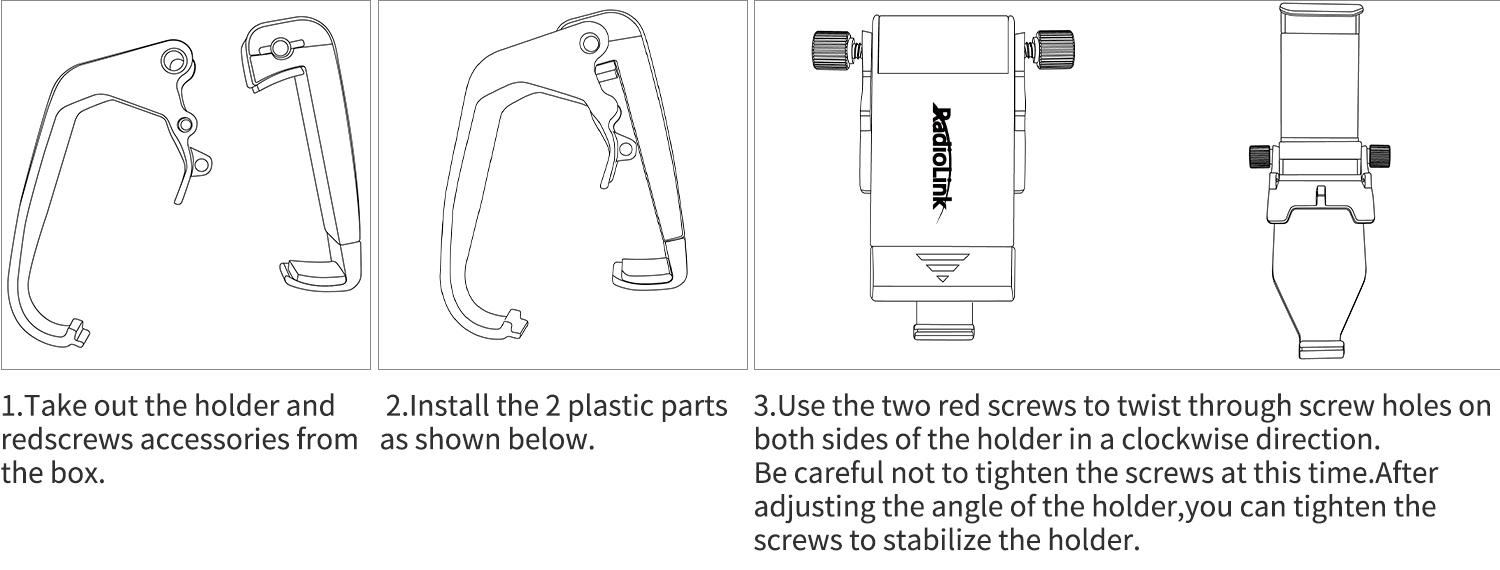
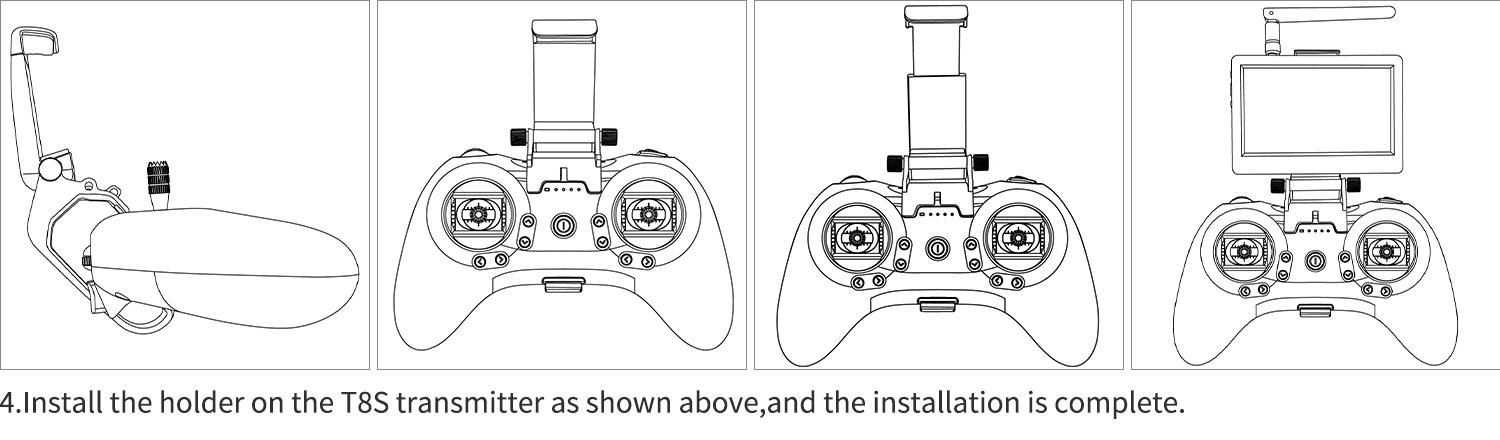
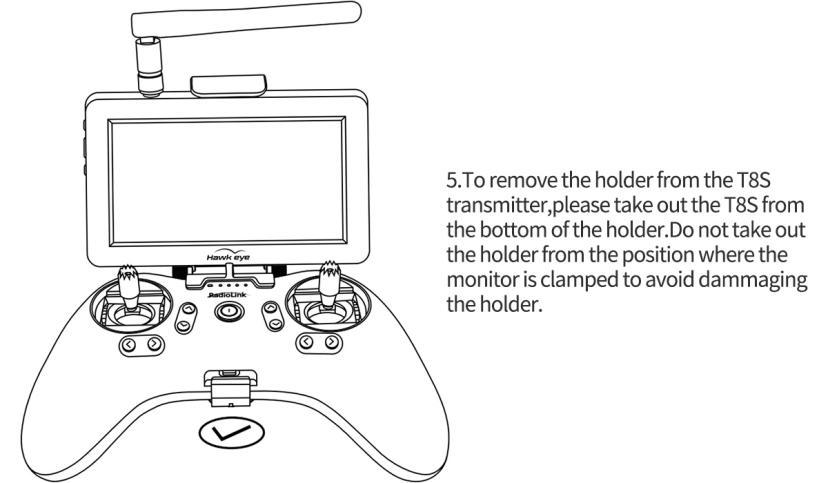
5.4 T8S Mobile/FPV Monitor Holder Instruction
Chapter 6 Specifications
6.1 F125 Specifications
Name: F125(Altitude Hold Micro Racing Drone)
Weight: 59g Drone only ;Max Take off Mass:75g
Drone Size: 125*55mm(with antenna 41mm ;without antenna 55mm)
Package Size: 240X215x120mm(RTF bag);230x203x60mm(Standalone box)
Transmitter Frequency: 2.4G
Image Transmission Frequency: 5.8G
Material: Carbon Fiber(Frame), Plastic(Cover, Bases for Image transmission/battery,propeller guard)
Motor: 8520 coreless with software to reduce noise
Propeller: GEMFAN propellers with diameter of 65mm
Transmitter: RadioLink 8-channel handle transmitter T8S
Receiver: RadioLink 8-channel mini receiver R8SM
Flight Controller: RadioLink flight controller F120
Battery: FULLYMAX 3.7V 660mA 25C LiPo Battery
Charger: USB Charger (1A/2A)
Max Flight Time:10 minutes, suitable for Indoor and outdoor
Low Voltage Alarm: Green led flashes quickly when lower than 3.7V
Max Control Distance: 2KM in the air(Maximum range is tested in an unobstructed area free of interference)Night Navigation Light Function:Support
Quick Rollover Function:Support
6.2 Image Transmission System Specifications
Operating Frequency: 5.8G(48 channels: 6 brands, 8 channels of each band)
Power: 25mW/100mW/200mW
Voltage: DC 3~5.2V (1S)
Current (4.2V): 320mA(25mW)/400mA(100mW)/460mA(200mW)
Weight: 4.4g
Dimensions: 18.03*16.83*16.55mm
Resolution: 800 TVL
FOV: 150°
Focal Length: 1.2mm
6.3 Little Pilot Monitor Specifications
Brand: Hawkeye
Frequency: 5.8GHz
Display Dimensions:4.3 inch
Resolution: 480*3(RGB)*272
Channels: 48 channels
Brightness: 700 cd/㎡
Aspect Ratio: 16:9
Response Time: <10ms
Color System: PAL/NTSC
Working Time: more than 2.5 hours
Receive Sensitivity:-94dB
OSD Display:Support
6.4 LONGSITE FPV Goggle Specifications
Name: Mini FPV Goggles
LCD Screen size: 3.0 Inch
Resolution: 480*320
Display Ratio: 16:9
View Angle: 6 o'clock
Brightness: 350cd/m² with high brightness backlight LED
Video delay: less than 20ms
Lens: 4X Fresnel Lens, 92% transparent rate no distort of light
Antenna: 2 X RP-SMA male
Languages: English and Chinese
Power adapter: DC5V/1A (USB interface)
Battery: 3.7V/1200mAh, Each full charge revive around 2.5hr working time
Thank you again for choosing RadioLink products.
If the above communication cannot solve your problem, you can also send emails to our technical support: after_service@radiolink.com.cn
Thank you again for choosing the RadioLink product.